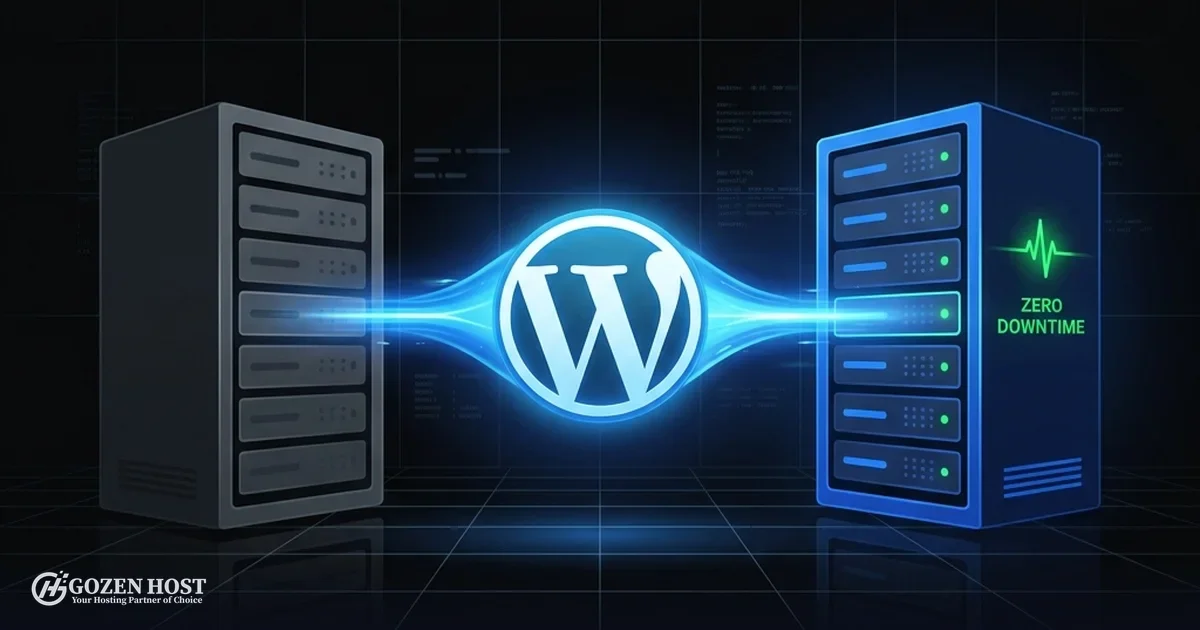
Switching hosts shouldn’t cost you customers
Every hosting migration guide starts with the technical steps. Export this, import that, update your DNS. Nobody talks about the part that actually matters: what happens to your visitors during the switch.
A botched migration means broken pages, lost emails, and Google crawling a dead site. Customers who hit a 500 error don’t come back to check if you fixed it.
This guide covers three ways to move your WordPress site to GoZen Host without losing a single visitor. Pick the method that matches your comfort level, or skip all of it and let our team handle the entire migration for free.
Before you touch anything
A clean migration starts before you export a single file. Spend 10 minutes on this checklist now, or spend hours debugging later.
Back up everything. Files, database, and email. Your current host probably has a backup tool in cPanel. Download a copy to your local machine. Don’t rely on the host you’re about to leave.
Lower your DNS TTL. Log into your domain registrar and set the TTL (Time to Live) to 300 seconds. Do this at least 24 hours before you plan to switch. When it’s time to point your domain to GoZen, the change propagates in minutes instead of hours. If you’re not sure how TTL works, our DNS Propagation guide explains it in plain terms.
Document your current setup. Note your PHP version, active plugins, any custom .htaccess rules, and cron jobs. You’ll need to match these on GoZen’s side.
Don’t cancel your old hosting yet. Keep it running until you’ve verified everything works on GoZen. You can always cancel later, but you can’t un-cancel a deleted account.
Three migration paths
| Method | Skill Level | Time | Best For |
|---|---|---|---|
| Plugin (All-in-One WP Migration) | Beginner | 15 – 30 min | Sites under 500 MB |
| Manual (SFTP + phpMyAdmin) | Intermediate | 30 – 60 min | Large sites, custom server configs |
| Managed (GoZen does it) | None required | 24 – 48 hours | Anyone who values their time |
Path 1: Plugin migration
The fastest way to move a standard WordPress site. A migration plugin packages your entire installation (themes, plugins, uploads, database) into a single file that you import on GoZen’s side.
On your current host, install All-in-One WP Migration. Go to Export, choose Export To → File, and wait for the .wpress file to download. That file is your entire site.
On GoZen Host, log into cPanel, open Softaculous, and install a fresh WordPress on your domain. Then log into that fresh WordPress, install the same plugin, go to Import, and upload the .wpress file. The plugin overwrites the fresh installation with your real site.
One step people skip: after import, go to Settings → Permalinks and click Save Changes without changing anything. This rebuilds your URL rewrite rules. Without it, every page except your homepage returns a 404.
The free version of All-in-One WP Migration handles files up to 512 MB. If your site is larger, Duplicator is a solid alternative. It generates an archive plus an installer script that runs on GoZen’s server.
For the full step-by-step with screenshots, see our KB guide: How to Migrate WordPress to GoZen Host.
Path 2: Manual migration
When plugins hit size limits or you need full control over the process, manual migration is the way. It takes longer, but you see exactly what’s moving and where.
The high-level flow:
- Export your database from your current host’s phpMyAdmin (Export → Quick → SQL format)
- Download all files via cPanel File Manager (compress → download) or SFTP
- Create a new database on GoZen via cPanel → MySQL Databases
- Import your database into the new one via GoZen’s phpMyAdmin
- Upload your files to
public_html/on GoZen via File Manager or SFTP - Update
wp-config.phpwith your new database name, user, and password
The critical step most guides gloss over: test before you switch DNS.
Edit your local hosts file to point your domain to GoZen’s server IP address. On Mac/Linux, that’s /etc/hosts. On Windows, C:\Windows\System32\drivers\etc\hosts. Add a line like:
YOUR_GOZEN_SERVER_IP yourdomain.com www.yourdomain.comNow open your domain in an incognito browser window. You’ll see your site running on GoZen’s servers while everyone else still sees the old host. Click through every page. Test your forms. Check your images. If something’s broken, fix it before the public switch.
This is what “zero downtime” actually means. Not that we’re magically fast at DNS propagation, but that you verify everything works before anyone else sees it.
Full walkthrough with commands and SQL snippets: Migration Checklist.
Path 3: Let GoZen handle it
Every GoZen hosting plan includes a free managed migration. No size limits, no complexity limits, no hidden fees.
Here’s how it works:
- Submit a request at gozenhost.com/free-migration
- Our team reviews your setup within 24 hours
- We send a secure credential collection form via email (we never ask for passwords in a support ticket)
- Our engineers copy your site (files, database, email accounts, SSL) to GoZen’s servers
- You verify everything using the hosts file method described above
- When you’re satisfied, we switch DNS
We handle migrations from cPanel, Plesk, DirectAdmin, Enhance, and custom setups. WooCommerce stores, multisite installations, sites with custom cron jobs. We’ve moved all of them.
Your credentials are encrypted in transit and destroyed after the migration is complete.
Making it live: the DNS switch
Once you’ve tested your site on GoZen (via any of the three paths above), it’s time to point your domain to us.
Option A: Update your nameservers at your domain registrar to:
ns1.gozenhost.com
ns2.gozenhost.com
ns3.gozenhost.com
zen.gozenhost.com
Option B: Update your A record to point to your GoZen server’s IP address. Use this if you manage DNS elsewhere (like Cloudflare).
If you lowered your TTL to 300 seconds earlier, propagation should complete within 5 to 30 minutes. Full details: Pointing Your Domain to Your Server.
Post-migration checklist
Don’t celebrate until you’ve verified these:
- SSL certificate. Confirm it’s active. Use the GoZen SSL Auditor to check.
- Every page. Click through your site. Check images, forms, checkout flows, and login pages.
- Email. Send a test email from your domain. If email isn’t working, your MX records may need updating.
- Caches. Clear everything: your browser cache, WordPress cache, and LiteSpeed Cache if installed.
- Speed test. Run your site through PageSpeed Insights. Compare with your old host. On GoZen’s NVMe Gen 4 storage with LiteSpeed, most sites see a noticeable TTFB improvement. Here’s what TTFB means and why your host controls it.
- Search Console. Check Google Search Console for crawl errors over the next few days. If your URLs didn’t change, there shouldn’t be any.
- Old host. Keep your old account active for at least 30 days as a safety net. Cancel only after you’ve confirmed everything.
When something breaks
Migrations occasionally hit bumps. Here are the common ones and their fixes:
Broken images or missing media. Usually caused by hardcoded URLs in your database that still point to your old host. Run a search-and-replace on your database using Better Search Replace or WP-CLI:
wp search-replace 'oldhost.com' 'yourdomain.com' --all-tables“Error establishing database connection.” Your wp-config.php has the wrong database credentials for GoZen’s server. Double-check the database name, username, and password in cPanel → MySQL Databases. Detailed fix: Fix WordPress Database Connection Error.
Mixed content warnings (padlock missing). Some URLs in your content still use http:// instead of https://. Run the search-replace above, swapping http://yourdomain.com with https://yourdomain.com. More details: Fix WordPress SSL Mixed Content.
Email stopped working. If your old host also handled email, you need to update your MX records to point to GoZen’s mail servers. Check Email Delivery Problems for the exact records.
Your old site stays untouched until you confirm the migration is complete. If anything goes wrong, you can always revert DNS back to your old host while you fix the issue on GoZen’s side. That’s the zero-downtime safety net.
What your site gets on GoZen
After migration, your WordPress installation runs on a stack built for speed:
- NVMe Gen 4 storage. 3,000 to 7,000 MB/s read speeds instead of 500 MB/s on SATA SSDs. Every database query and file read happens faster. Here’s why that matters.
- LiteSpeed Web Server. Native WordPress caching with server-level page cache, no plugin overhead.
- CloudLinux isolation. Your site gets its own CPU and RAM allocation. A bad neighbor on the same server can’t slow you down.
- cPGuard WAF. Brute force protection, malware scanning, and bot mitigation from day one.
- EU and US datacenters. Pick the region closest to your customers. Every millisecond of latency you cut improves your Core Web Vitals.
Ready to move? Pick a hosting plan or request your free migration.
Your next project deserves better hosting.
NVMe Gen 4 storage, LiteSpeed, 99.9% uptime SLA. Starting at $4.00/mo.
Dorian K. writes about hosting infrastructure, performance, and migrations at GOZEN HOST LLC, a Top 25 WordPress Hosting Provider for 2026 (HostAdvice), covering the tools that keep your business online.
Last updated: Apr 29, 2026