Your WordPress site is not slow. Your infrastructure is.
Most speed optimization guides start with “install a caching plugin.” That’s like putting racing tires on a car with a broken engine.
Speed starts at the server. The plugin layer comes after.
This is the exact stack and configuration approach we use at GOZEN HOST to deliver sub-second WordPress page loads - and the technical reasoning behind each layer.
Layer 1: Storage - NVMe Gen 4 over PCIe
Every page load triggers dozens of file reads and database queries. If your hosting provider still runs SATA SSDs (or worse, spinning disks), every single operation waits in a queue.
What NVMe changes:
- Read speeds: 3,000–7,000 MB/s (vs 500 MB/s on SATA SSD)
- IOPS: 500,000+ random operations per second
- Latency: Sub-10μs response time
Real impact on WordPress:
A typical WordPress page load triggers 30–80 database queries. On SATA SSD, each query adds ~0.5ms of storage latency. On NVMe, that drops to ~0.05ms.
Over 60 queries, that’s 30ms saved on storage alone - before any code even executes.
For a deeper breakdown of storage technologies, read our guide on why NVMe storage makes your website faster.
Layer 2: Web Server - LiteSpeed over Apache
Apache is battle-tested but architecturally heavy for WordPress. It spawns processes per connection, chews through RAM, and struggles under concurrent load.
LiteSpeed advantages for WordPress:
- Event-driven architecture - handles thousands of concurrent connections with minimal RAM
- Built-in
.htaccesscompatibility - drop-in replacement, no config rewrite - Native LiteSpeed Cache (LSCache) - server-level page caching, no PHP execution on cache hits
- HTTP/3 + QUIC support - reduced round trips, especially on mobile
The difference in practice:
With Apache + WP Super Cache, a cached page still requires PHP to bootstrap, check the cache, then serve the file. With LiteSpeed + LSCache, cached responses are served directly by the web server. PHP never touches it.
Result: Cached TTFB drops from ~200ms to under 50ms.
Layer 3: Caching Architecture - Three Tiers
Fast WordPress hosting isn’t one cache. It’s three caches stacked intelligently:
Tier 1: Full Page Cache (LSCache)
Stores complete HTML output. On cache hit, the response goes directly from server memory to the browser. No PHP, no database, no computation. Our LiteSpeed Cache setup guide covers the full configuration.
Configuration that matters:
- Cache TTL: 7 days for static pages, 1 hour for blog indexes
- Cache key: URL + device type (separate mobile/desktop variants)
- Purge rules: Auto-purge on post update, comment, or WooCommerce cart action
Tier 2: Object Cache (Redis)
WordPress uses wp_cache to store expensive query results, transients, and session data. By default, this lives in the database. Move it to Redis and those lookups become microsecond in-memory reads.
What Redis caches:
- Repeated database queries (menu structures, widget data, option tables)
- Transient API data (API responses, computed values)
- Session data for logged-in users
Impact: Pages that can’t be full-page cached (cart pages, user dashboards, admin) still load 40–60% faster.
Tier 3: Browser Cache (HTTP Headers)
The cheapest cache is the one that never hits your server. Proper Cache-Control and ETag headers ensure returning visitors load assets from their own browser.
Recommended headers for WordPress assets:
- Static assets (CSS/JS/images):
Cache-Control: public, max-age=31536000, immutable - HTML pages:
Cache-Control: public, max-age=0, must-revalidate - API responses:
Cache-Control: private, no-cache
Layer 4: Protocol - HTTP/3 and QUIC
HTTP/2 solved head-of-line blocking at the HTTP layer. HTTP/3 solves it at the transport layer by replacing TCP with QUIC.
Why this matters for WordPress sites:
- Zero round-trip connection setup (0-RTT) for returning visitors
- No packet loss cascading - one dropped packet doesn’t stall all streams
- Better mobile performance - QUIC handles network switches (WiFi → cellular) without reconnecting
Measurable impact: 100–300ms saved on initial connection for mobile users on flaky networks. That’s the difference between a 1.2s and a 0.9s LCP.
Layer 5: Front-End - What You Control
With the server stack dialed in, front-end optimization amplifies the results:
Images
- Format: WebP or AVIF. Never serve uncompressed PNG to browsers that support WebP.
- Lazy loading: Native
loading="lazy"on below-fold images. Never lazy-load the hero image. - Sizing: Always specify
widthandheightattributes to prevent CLS.
CSS and JavaScript
- Critical CSS inline: Extract above-fold styles and inline them in
<head>. Load the rest asynchronously. - Defer non-essential JS: Analytics, chat widgets, and tracking scripts should load after
DOMContentLoaded. - Remove unused plugins: Every active plugin adds at least one CSS and one JS file. Audit ruthlessly.
Fonts
- Self-host fonts instead of loading from Google Fonts CDN. Eliminates a DNS lookup + connection.
- Use
font-display: swapto prevent invisible text during font load. - Subset fonts to include only the characters your site actually uses.
How to Measure What Matters
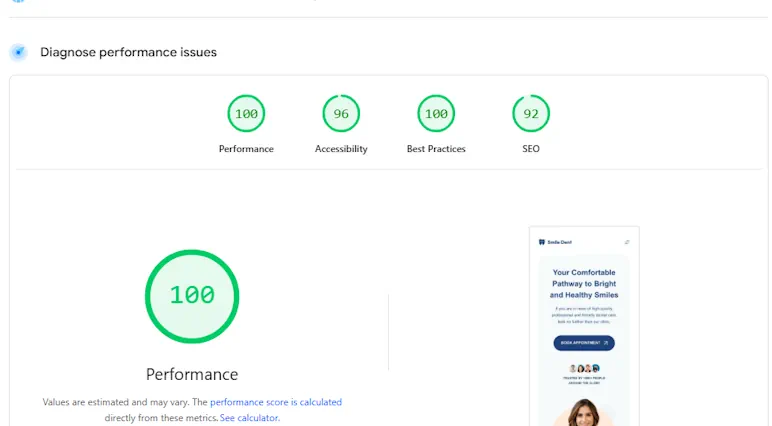
Stop obsessing over PageSpeed Insights scores. Focus on these three Core Web Vitals that Google actually uses for ranking:
| Metric | What It Measures | Target | GoZen Typical |
|---|---|---|---|
| LCP | Largest Contentful Paint - when the main content is visible | < 2.5s | < 1.2s |
| INP | Interaction to Next Paint - response to user input | < 200ms | < 80ms |
| CLS | Cumulative Layout Shift - visual stability | < 0.1 | < 0.02 |
Tools to use:
- Google PageSpeed Insights - Lab + field data for any URL
- Chrome DevTools → Lighthouse - Local testing with throttling
- WebPageTest.org - Waterfall analysis from multiple locations
- Chrome User Experience Report (CrUX) - Real-world data from Chrome users
For raw bandwidth testing to our datacenters, use our Looking Glass to test speed from your browser.
The Stack at a Glance
| Layer | Technology | Impact |
|---|---|---|
| Storage | NVMe Gen 4 (PCIe 4.0) | 10x fewer I/O bottlenecks |
| Web Server | LiteSpeed Enterprise | Native LSCache, HTTP/3, event-driven |
| Page Cache | LSCache (server-level) | Sub-50ms TTFB on cache hit |
| Object Cache | Redis | 40–60% faster for uncacheable pages |
| Transport | HTTP/3 + QUIC | 100–300ms saved on mobile |
| Security | WAF + Account Isolation | Performance without compromise |
Every plan includes CloudLinux resource isolation so your performance stays consistent regardless of server neighbours.
This is the production stack behind every GOZEN HOST WordPress hosting plan - from the $5.33 starter to the $9.99 performance tier.
What to Do Right Now
- Test your current TTFB - open Chrome DevTools, go to Network tab, reload, check “Waiting (TTFB)” on the document request. If it’s above 400ms, your server is the bottleneck.
- Audit your plugins - deactivate everything, measure, then re-activate one by one. Find the slugs that cost you 200ms+.
- Enable proper caching - if your host supports LiteSpeed Cache, install the plugin and enable page + browser cache. If not, you’re fighting uphill.
- Set your image format - convert existing images to WebP. Plugins like ShortPixel or Imagify handle this automatically.
- Consider your hosting - if steps 1–4 don’t get you below 1.5s LCP, the problem is almost always the infrastructure.
We’ve been recognized as a Top 25 WordPress Hosting Provider for 2026 because this stack works. The benchmarks are public, the reviews are real, and the migration is free.
Ready to stop fighting your infrastructure? View WordPress Hosting Plans →
Built for speed. Priced for growth.
NVMe Gen 4 storage, LiteSpeed, 99.9% uptime SLA. Starting at $4.00/mo.
Dorian K. writes about hosting infrastructure, performance, and migrations at GOZEN HOST LLC, a Top 25 WordPress Hosting Provider for 2026 (HostAdvice), covering the tools that keep your business online.
Last updated: Mar 09, 2026