What you wrote isn’t why your emails are getting rejected. They’re being turned down because you didn’t set it up right.
You sent an email with an invoice that was completely normal. Press send. The client never got it. It’s next to offers from Nigerian princes and weight loss pills in their spam folder.
This isn’t a problem with Gmail. Your domain didn’t pass an identity check. The server that received your email asked three questions, but your DNS didn’t answer any of them.
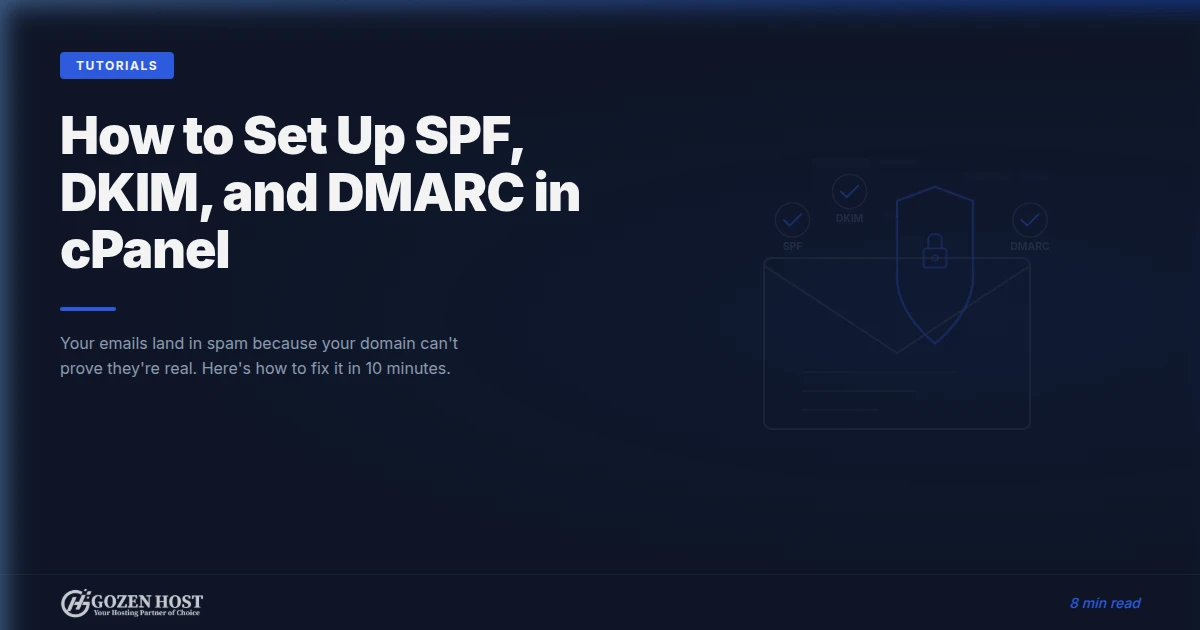
SPF, DKIM, and DMARC are the three questions. You’re sending email without an ID if you haven’t set them up. That means you’re sending spam email in 2026.
What changed: Gmail and Yahoo set a limit
Google and Yahoo started requiring bulk senders to authenticate their email in February 2024. By the end of 2025, those rules were stricter for everyone. The limit went down. The rules were stricter.
Here’s what that means right now:
- Gmail silently drops or moves emails to spam folders if they do not meet DMARC alignment.
- Yahoo rejects emails from domains that do not have published SPF and DKIM records.
- Microsoft 365 places a lot of importance on authentication in its spam scoring. A missing DKIM signature can hurt your sender reputation.
If you send more than a few emails each day from your domain, such as invoices, order confirmations, support replies, or newsletter updates, you are seen as a “sender.” Senders need credentials.
The three records, explained without the jargon
Think of email authentication as a three-part ID system for your domain. Each record answers a different question that receiving servers ask about every email you send.
SPF: “Is this server allowed to send for this domain?”
SPF (Sender Policy Framework) is a TXT record in your DNS that lists every IP address and mail server allowed to send email for your domain.
When Gmail gets an email from [email protected], it checks your SPF record. If the sending server’s IP is on the list, SPF passes. If not, the email seems suspicious.
The problem SPF solves: Without it, anyone can create a mail server, set the “From” address to [email protected], and send emails pretending to be you. SPF makes that forgery detectable.
What a basic SPF record looks like:
v=spf1 include:_spf.gozenhost.com ~allThis means, “Only servers listed in GoZen Host’s SPF setup can send email for my domain. Soft-fail everything else.”
Notice the ~all at the end. That tilde matters:
~all(soft-fail): emails from unlisted servers get flagged but still delivered. Use this while you’re setting up and testing.-all(hard-fail): emails from unlisted servers get rejected outright. Use this once you’ve confirmed every legitimate sending service is included in your record.
Most configurations start with ~all. Once you’ve verified that your hosting, transactional email service, and any marketing platforms are all listed, switch to -all for stronger protection. If you jump straight to -all and forget to include a service, those emails silently disappear.
If you also use Google Workspace, Mailchimp, or another service that sends email for you, add them:
v=spf1 include:_spf.gozenhost.com include:_spf.google.com include:servers.mcsv.net ~allOne rule that confuses people is that you can only have one SPF record for each domain. If you have two, they will both break. Combine all your providers into a single record.
DKIM: “Has this email been tampered with?”
DKIM (DomainKeys Identified Mail) adds a cryptographic signature to every outgoing email. Your mail server signs the message with a private key. The matching public key is stored in your DNS as a TXT record.
When a receiving server gets your email, it retrieves your public key from DNS and checks the signature. If the signature matches, it proves two things:
- The email truly came from your domain’s mail server.
- Nobody changed the content during transit.
The problem DKIM solves: SPF only checks the server. DKIM checks the message itself. An email that passes SPF but fails DKIM indicates the content was changed after leaving your server. That’s a warning sign for phishing.
What a DKIM record looks like:
Type: TXT
Host: default._domainkey
Value: v=DKIM1; k=rsa; p=MIGfMA0GCSqGSIb3DQEBA... (your public key)
On GoZen Host shared hosting, DKIM is configured through cPanel’s Email Deliverability tool. You don’t need to generate keys manually. cPanel handles the key pair and DNS record insertion. Our email authentication KB guide walks through the exact steps.
DMARC: “What should I do if SPF or DKIM fails?”
DMARC (Domain-based Message Authentication, Reporting, and Conformance) ties SPF and DKIM together. It tells receiving servers:
- Whether to check SPF, DKIM, or both
- What to do when a check fails (nothing, quarantine, or reject)
- Where to send reports about emails using your domain
The problem DMARC solves: Without DMARC, each mail provider makes its own decision about failed authentication. Gmail might spam-folder it. Yahoo might reject it. Outlook might let it through. DMARC gives you control over that decision.
A starter DMARC record:
Type: TXT
Host: _dmarc
Value: v=DMARC1; p=none; rua=mailto:[email protected]
The p=none policy means “don’t take action yet, just send me reports.” This is where you should start. After 2–4 weeks of reviewing reports, you’ll know which services send email on your behalf and whether they’re passing authentication. Then you tighten the policy:
p=none→ Monitor only (start here)p=quarantine→ Send failures to spamp=reject→ Block failures entirely (the goal)
How they work together (and why you need all three)
Each record alone has gaps. Together, they form a chain that’s hard to fake:
| Check | What it validates | Weakness alone |
|---|---|---|
| SPF | Sending server IP | Doesn’t verify message content |
| DKIM | Message integrity | Doesn’t verify sending server |
| DMARC | Policy enforcement | Useless without SPF and DKIM to check |
A spoofed email might pass SPF (if the attacker uses a permitted relay) but fail DKIM (because they don’t have your private key). DMARC catches that mismatch and enforces your policy.
This is why Gmail and Yahoo require all three. One record isn’t authentication. It’s a suggestion.
Setting it up in cPanel (the 10-minute version)
If you’re on GoZen Host shared hosting, most of this is already done or one click away. Here’s the verification and configuration flow.
On Enhance instead of cPanel? The same records apply, but the interface is different. See our Enhance email authentication guide for the exact steps.
Step 1: Check what’s already configured
- Log in to cPanel
- Go to Email Deliverability (under the Email section)
- Find your domain. cPanel shows a status for each record
If you see green checkmarks for SPF and DKIM, those are already active. Most GoZen accounts have SPF pre-configured and DKIM ready to install.
Step 2: Fix any missing records
If SPF or DKIM shows issues, click Manage next to your domain. cPanel will show the suggested records and offer to install them automatically.
For DKIM specifically, click Install the suggested record. cPanel generates the key pair and publishes the public key to your DNS zone.
Step 3: Add DMARC manually
DMARC isn’t auto-configured by cPanel. You need to add it yourself:
- In cPanel, go to Zone Editor (under Domains)
- Click Manage next to your domain
- Click Add Record → Add TXT Record
- Set the name to
_dmarc.yourdomain.com - Set the value to:
v=DMARC1; p=none; rua=mailto:[email protected] - Save
Start with p=none. Review the reports for a few weeks. Then tighten to p=quarantine and eventually p=reject.
Step 4: Test everything
Send a test email to a Gmail address. Open it, click the three dots, and select Show original. Look for:
SPF: PASS
DKIM: PASS
DMARC: PASS
All three should show PASS. If any show FAIL or NEUTRAL, check the corresponding DNS record.
For a thorough check, use MXToolbox or mail-tester.com. Send an email to the address they give you and get a detailed score. Our diagnostics tools can also verify your DNS records directly.
What breaks when you get this wrong
This isn’t theoretical. Here’s what we see in support tickets from customers who migrated to GoZen from hosts that didn’t configure authentication:
Missing SPF: Emails to Gmail clients bounce or land in spam. The customer’s WooCommerce order confirmations never reach buyers. Buyers think the order failed and buy elsewhere.
Missing DKIM: Emails arrive but Gmail flags them with a “Be careful with this message” warning banner. Clients stop opening them. Response rates crater.
Missing DMARC (or p=none forever): A spammer spoofs the domain and sends phishing emails to the customer list. Recipients mark them as spam. The domain’s sender reputation tanks. Now even legitimate emails get filtered.
Multiple SPF records: We see this constantly. Someone adds a second SPF record for Mailchimp instead of combining it with the existing one. Both records become invalid. All email authentication breaks silently.
The 5-minute audit for your current domain
Run these three checks right now:
-
SPF: Go to MXToolbox SPF Check, enter your domain. You should see exactly one SPF record with all your providers listed.
-
DKIM: Go to MXToolbox DKIM Lookup, enter your domain and selector (usually
default). You should see a valid public key. -
DMARC: Go to MXToolbox DMARC Lookup, enter your domain. You should see a published DMARC policy.
If any of those come back empty or show errors, your emails are flying without ID. Fix it today, not after the next client asks why they never got your proposal.
Reading DMARC reports (without losing your mind)
DMARC reports arrive as XML files that are genuinely unpleasant to read raw. Use a free service to parse them:
- DMARC Analyzer: visual dashboard, free tier available
- Postmark DMARC: weekly digests, clean interface
What you’re looking for in the reports:
- Authorized sources passing: Your hosting server, Google Workspace, Mailchimp. These should show SPF and DKIM pass
- Unknown sources failing: IPs you don’t recognize sending email as your domain. This is spoofing, and it’s exactly what DMARC is designed to catch
- Alignment failures: Your legitimate services passing SPF but failing DKIM alignment. Usually means the DKIM selector or domain needs adjusting
Once you’ve confirmed only legitimate services show in the reports, move from p=none to p=quarantine, then to p=reject.
The bottom line
Email authentication is not a “nice to have” security feature anymore. It’s a deliverability requirement. Gmail, Yahoo, and Microsoft enforce it. Your emails either pass the check or they don’t arrive.
The fix takes 10 minutes in cPanel or Enhance. The cost of not doing it is every email your clients never see.
Hands-on setup guides:
- SPF, DKIM & DMARC setup in cPanel: DNS records and cPanel steps
- SPF, DKIM & DMARC setup in Enhance: the same records, Enhance interface
- Setting up professional email: creating mailboxes and aliases
- Custom business email setup guide: choosing the right email path for your business
Need email that works out of the box? Every GoZen shared hosting plan includes SPF and DKIM pre-configured, with our support team ready to help you set up DMARC and verify your full authentication chain. View plans →
Follow along on real infrastructure.
NVMe Gen 4 storage, LiteSpeed, 99.9% uptime SLA. Starting at $4.00/mo.
Dorian K. writes about hosting infrastructure, performance, and migrations at GOZEN HOST LLC, a Top 25 WordPress Hosting Provider for 2026 (HostAdvice), covering the tools that keep your business online.
Last updated: Apr 28, 2026